#editor #sublime #textmate #textmate

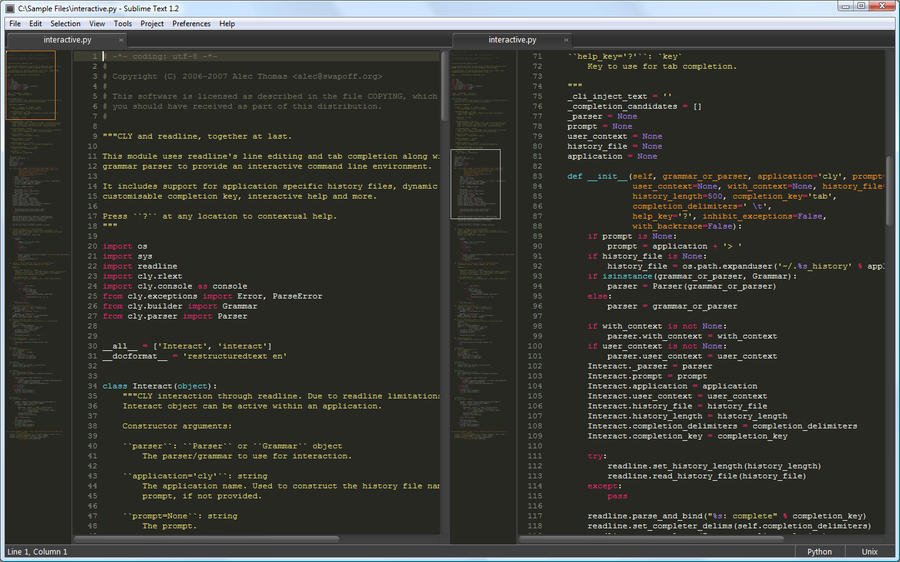
最近#textmateのTwitterタグでたまたまsublimetextを目にするんですが、Textmate2の代わりになれるかで議論されているようです。

一応入れてみたのですが、最初の印象というえば

  • 速い。163MBのcsvファイルをたった数秒で開きました。Textmateはもう何分間固まったんです。
  • モダンなインターフェイス。アニメーションとか、縦二画面ができるなどTextmateよりは確実に進化しています。
  • command + Tでファイルを開くのが速いしスムーズ
  • コードの比較機能が便利
  • ShiftJISなどの日本語文字コードは依然サポートされない

このへんにいいTipsを紹介してくれる記事があります。 http://net.tutsplus.com/tutorials/tools-and-tips/sublime-text-2-tips-and-tricks/

#editor #sublime #textmate #textmate

最近#textmateのTwitterタグでたまたまsublimetextを目にするんですが、Textmate2の代わりになれるかで議論されているようです。

一応入れてみたのですが、最初の印象というえば

  • 速い。163MBのcsvファイルをたった数秒で開きました。Textmateはもう何分間固まったんです。
  • モダンなインターフェイス。アニメーションとか、縦二画面ができるなどTextmateよりは確実に進化しています。
  • command + Tでファイルを開くのが速いしスムーズ
  • コードの比較機能が便利
  • ShiftJISなどの日本語文字コードは依然サポートされない

このへんにいいTipsを紹介してくれる記事があります。 http://net.tutsplus.com/tutorials/tools-and-tips/sublime-text-2-tips-and-tricks/

#tips #textmate #textmate

課題

最後の編集した箇所に遷移する機能はTextMateデフォルトではないですが、多分みんなUndo/Redoで実現していたと思います。 でも⌘Z(Undo)、⇧⌘Z(Redo)はやはり手間がかかってしまいますので、一発でできるかをググッてみたところ、TMGoToLastEditを見つかりました。

インストール

ダウンロード、解凍、ダブルクリックでインストール完了です。

使い方

⌥⌘J ( Option + Command + J ) あるいは Navigationのメニューからクリック

Go_to_Last_Edit

#tips #textmate #textmate

課題

最後の編集した箇所に遷移する機能はTextMateデフォルトではないですが、多分みんなUndo/Redoで実現していたと思います。 でも⌘Z(Undo)、⇧⌘Z(Redo)はやはり手間がかかってしまいますので、一発でできるかをググッてみたところ、TMGoToLastEditを見つかりました。

インストール

ダウンロード、解凍、ダブルクリックでインストール完了です。

使い方

⌥⌘J ( Option + Command + J ) あるいは Navigationのメニューからクリック

Go_to_Last_Edit

#tips #mac #textmate #textmate

従来の⌘T(Command + T)Go to Fileの問題:パスが効かない

⌘TはTextMateで速やかにファイルを開ける機能ですが、例えばこんなファイルがあるとします。 -blogs/index.html.erb -posts/index.html.erb -categories/index.html.erb -tags/index.html.erb -users/index.html.erb

で⌘Tで”blogs/index”を叩くと何も表示されない、つまりパスが効かないのが一番の問題です。それを解消するのがgotofile.tmbundle

インストール

cd ~/Library/Application\ Support/TextMate/Bundles/ git clone git://github.com/stevenchanin/gotofile.tmbundle.git GoToFile.tmbundle で、textmateを再起動

使い方

⇧⌘K ( Command + Shift + K )で新しいGo To Fileダイアログを開いて”ar/in”を叩くことでarticles/index.htmlが選択されます! <a href=”https://images.kinopyo.com/wp-content/uploads/2011/08/Go-To-File-Textmate-Bundle.png)><img class=”alignnone size-medium wp-image-2126” title=”Go To File Textmate Bundle” src=”https://images.kinopyo.com/wp-content/uploads/2011/08/Go-To-File-Textmate-Bundle-300x273.png) alt=”” width=”300” height=”273” /></a>

他にもspaceキーでQuickLookモードでファイルを見たり、⌥(option)キーでデフォルトのアプリでファイルを開いたり、⇧(shift)キーでフォーカスに選択したファイルのパスを入力することができます。

参考

http://how-i-work.com/workbenches/2-keyboard-based-no-mouse-rails-development-with-textmate

#tips #mac #textmate #textmate

従来の⌘T(Command + T)Go to Fileの問題:パスが効かない

⌘TはTextMateで速やかにファイルを開ける機能ですが、例えばこんなファイルがあるとします。 -blogs/index.html.erb -posts/index.html.erb -categories/index.html.erb -tags/index.html.erb -users/index.html.erb

で⌘Tで”blogs/index”を叩くと何も表示されない、つまりパスが効かないのが一番の問題です。それを解消するのがgotofile.tmbundle

インストール

cd ~/Library/Application\ Support/TextMate/Bundles/ git clone git://github.com/stevenchanin/gotofile.tmbundle.git GoToFile.tmbundle で、textmateを再起動

使い方

⇧⌘K ( Command + Shift + K )で新しいGo To Fileダイアログを開いて”ar/in”を叩くことでarticles/index.htmlが選択されます! <a href=”https://images.kinopyo.com/wp-content/uploads/2011/08/Go-To-File-Textmate-Bundle.png)><img class=”alignnone size-medium wp-image-2126” title=”Go To File Textmate Bundle” src=”https://images.kinopyo.com/wp-content/uploads/2011/08/Go-To-File-Textmate-Bundle-300x273.png) alt=”” width=”300” height=”273” /></a>

他にもspaceキーでQuickLookモードでファイルを見たり、⌥(option)キーでデフォルトのアプリでファイルを開いたり、⇧(shift)キーでフォーカスに選択したファイルのパスを入力することができます。

参考

http://how-i-work.com/workbenches/2-keyboard-based-no-mouse-rails-development-with-textmate
git clone https://github.com/enormego/EGOTextMateFullScreen.git /tmp/EGOTextMateFullScreen

xcodebuild -project /tmp/EGOTextMateFullScreen/EGOTextMateFullScreen.xcodeproj -target EGOTextMateFullScreen

cp -R /tmp/EGOTextMateFullScreen/build/Release/EGOTextMateFullScreen.tmplugin ~/Library/Application\ Support/TextMate/PlugIns

# after installed
rm -rf /tmp/EGOTextMateFullScreen/

これが完成図!

Textmate Fullscreen

git clone https://github.com/enormego/EGOTextMateFullScreen.git /tmp/EGOTextMateFullScreen

xcodebuild -project /tmp/EGOTextMateFullScreen/EGOTextMateFullScreen.xcodeproj -target EGOTextMateFullScreen

cp -R /tmp/EGOTextMateFullScreen/build/Release/EGOTextMateFullScreen.tmplugin ~/Library/Application\ Support/TextMate/PlugIns

# after installed
rm -rf /tmp/EGOTextMateFullScreen/

これが完成図!

Textmate Fullscreen